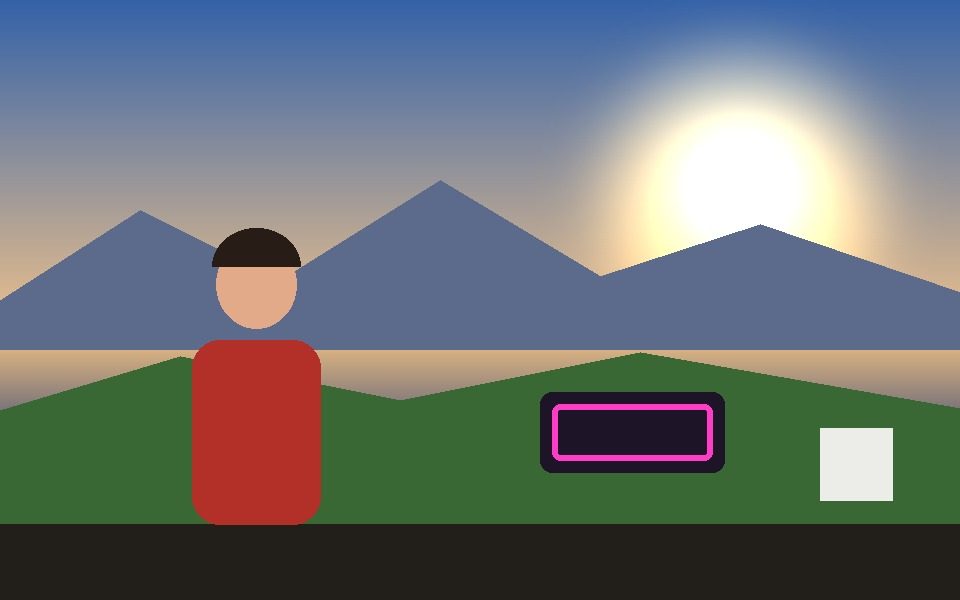
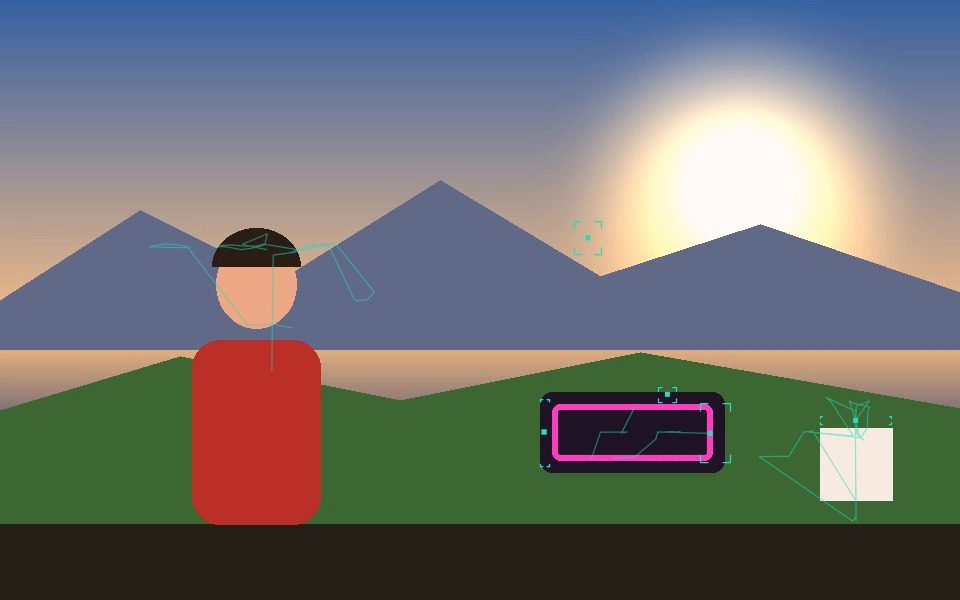
Why Webcam Motion Tracking Works Here
Frame-differencing motion detection
Compares each new frame against a running, adaptively-learned background to isolate only what changed — the same core technique behind most real-time motion-triggered installations.
Tune sensitivity live
Motion threshold, blur, and adaptive background learning rate are all exposed as sliders, so a twitchy webcam feed or a dim room can be dialed in without reloading anything.
Generative overlays on top of raw motion
Bounding boxes, constellation links, speed heatmaps, glitch blocks, and a dozen other visual styles render over whatever motion is detected — built for VJ loops and installations, not just detection.
Record what you see
Start/stop recording captures the live tracked output — overlays included — straight to WebM or MP4, no separate screen-recording tool needed.
Runs 100% client-side
Your webcam feed is processed locally via WebAssembly computer vision — it’s never uploaded anywhere, which also means there’s no network lag between camera and screen.
Works with a file too
No webcam handy? Load a video file instead — motion tracking runs identically over pre-recorded footage.
Frequently Asked Questions
Do I need to install anything for webcam motion tracking?
No. Vis Exo runs entirely in the browser — click Use Webcam, allow camera access, and tracking starts immediately.
Is my webcam feed uploaded anywhere?
No. All video processing happens locally on your device using WebAssembly computer vision — nothing is sent to a server.
What’s the difference between Motion Tracking and Blob Tracking here?
Motion Tracking flags pixels that changed between frames; Blob Tracking additionally extracts and follows the shape/contour of each detected region. Motion suits simple triggered effects; Blob suits following a specific moving object.
Can I export the webcam feed with tracking overlays applied?
Yes — Record captures the fully-composited output (video + overlays) as a WebM or MP4 file you can save or share.
Can I track motion in only part of the frame?
Yes. Click Add Zone and drag over the video to mark a Motion Zone, then turn on Only Track Inside Zones — movement anywhere else, like a road at the edge of the shot, is ignored.
Why does everything light up after a cut or a camera shake?
The whole frame suddenly differs from the learned background. Auto-Relearn on Scene Cut resets the background when that happens, and Reject Frame-Filling Blobs ignores detections that cover most of the frame.