Why Edit Photos Here
Auto enhance that keeps the mood
Auto enhance reads your photo’s own histogram: it lifts a dark shot part of the way, adds contrast to a flat one, opens deep shadows and adds a little vibrance — and leaves the warm light of a night street alone instead of “correcting” it away.
Filters you can actually judge
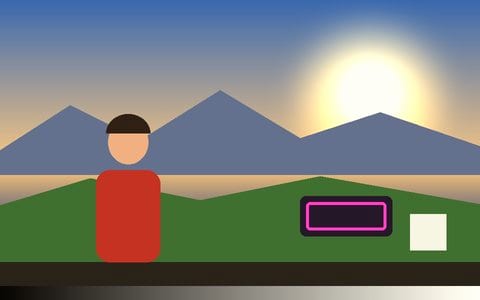
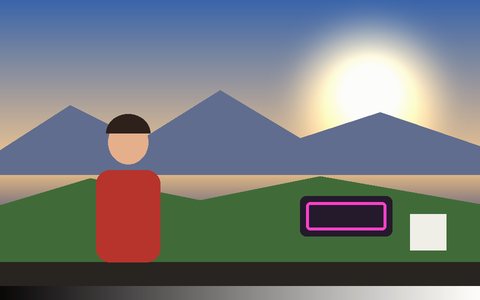
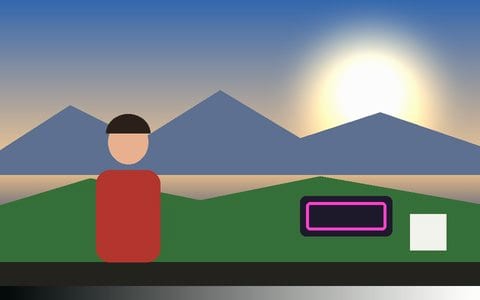
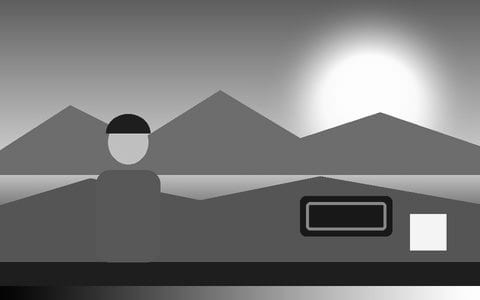
Every filter tile is your photo, small, through that filter — Kodak Gold, Portra, Fuji, Kodachrome, teal and orange, black and white and more — so you pick by eye, then dial the strength.
Simple sliders, real controls
Exposure, Contrast, Highlights, Shadows, Warmth, Saturation, Vibrance, Sharpen and Grain. Under them sits a full grading suite — colour wheels, split toning, HSL — when you want more. See photo colour correction.
Crop for any feed
Square, 4:5, 9:16, 16:9, 3:2 and 4:3 in one tap. See cropping for Instagram.
Private by design
Your photo never leaves the browser tab — no upload, no account, no watermark on what you save.
Full-size saves
Save photo re-renders every edit at the photo’s own resolution, as PNG, JPEG or WebP, or copies it straight to the clipboard.
Frequently Asked Questions
How do I edit a photo?
Press Photo (or Analyse Photo on a computer) and pick one. The Edit photo panel opens at the top: try Auto enhance, tap a filter, move a slider, pick a crop, then Save photo.
Can I edit several photos at once?
Yes. Pick several and they line up in a strip under the picture; the same look applies to each, and Export all saves every one.
Can I undo an edit?
Yes — every slider works with undo, double-clicking a slider sets it back to zero, and Reset edits clears the panel.
Is it free? Is there a watermark?
Free, no watermark, no signup, no limit on how many photos you edit.
Are my photos uploaded?
No. The photo is opened and edited inside the browser tab on your own device, and the file you save is made there too. Nothing is sent to a server.
Will it lower the resolution?
No. Save photo renders the finished edit at the photo’s own full size (or the preview size, if you pick it), as PNG, JPEG or WebP.